
Why Dust Is Silently Damaging Your Electronics (And What to Do About It)
The best way to clean dust off electronics is to use a combination of compressed air, microfiber cloths, and isopropyl alcohol — applied safely with the device powered off and unplugged.
Here’s a quick overview of the safest methods by device type:
| Device | Best Cleaning Method |
|---|---|
| PC internals | Compressed air (short bursts, held fan still) |
| Screens (TV, monitor, phone) | Dry or lightly dampened microfiber cloth |
| Keyboards | Compressed air + isopropyl alcohol on cotton swab |
| Wearables & earbuds | Microfiber cloth + adhesive putty for grilles |
| Fans & heatsinks | Compressed air + isopropyl alcohol swab on blades |
We use electronics constantly — for work, entertainment, and staying connected. But most of us never think about cleaning them until something goes wrong.
Dust is a bigger problem than it looks. When dust builds up inside vents and around fans, it traps heat. That heat can slow down your device, shorten its lifespan, and in serious cases cause permanent damage to components.
There’s a hygiene angle too. Your keyboard, phone screen, and headphones come into contact with your hands and face every single day. They collect bacteria, skin oils, and allergens — things that matter a lot if you or your family are sensitive to air quality or allergens at home.
The good news? Cleaning your electronics safely is simple once you know the right tools and methods. The bad news? A lot of people are already doing it wrong — using the wrong cloths, the wrong chemicals, or skipping it entirely.
This guide walks you through exactly what to do, step by step, for every type of device.
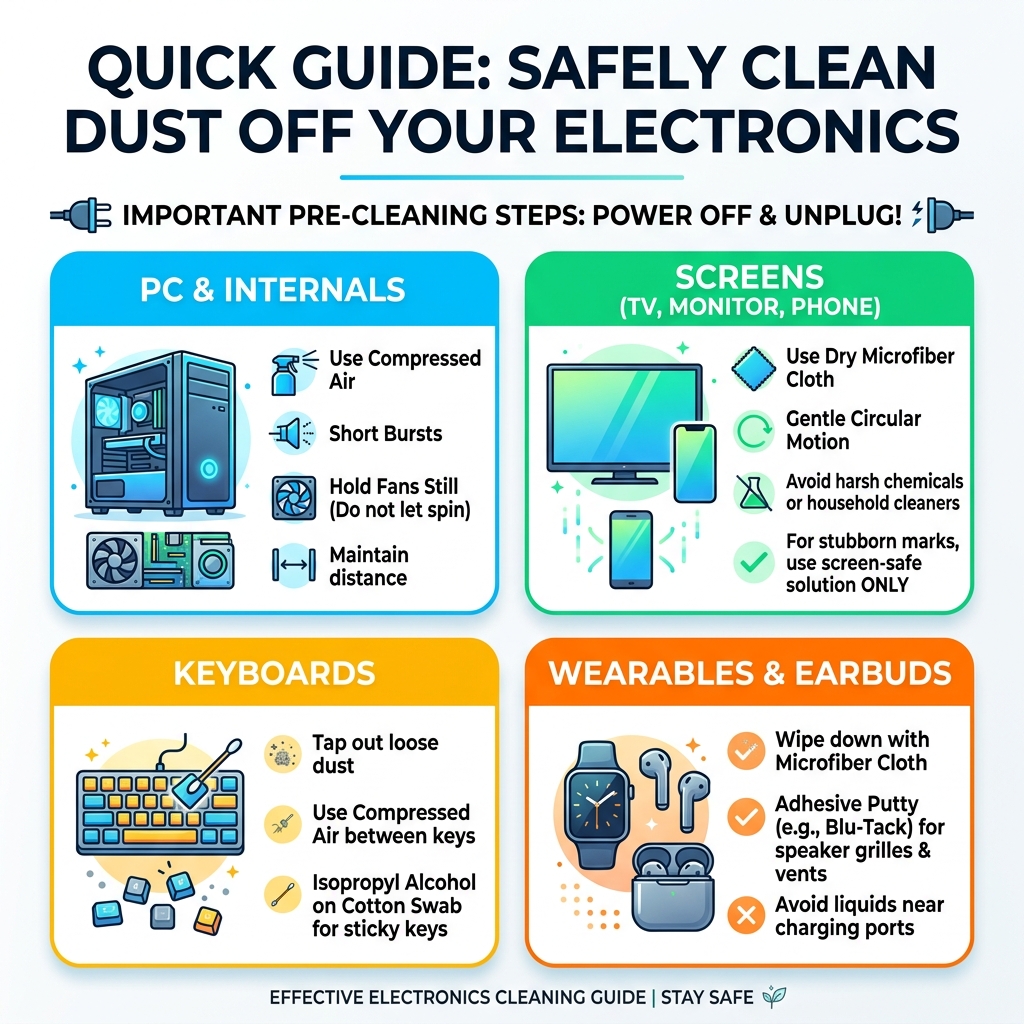
Essential Tools for the Best Way to Clean Dust Off Electronics
To get started, we need to assemble a “tech cleaning kit.” Using the wrong materials—like paper towels or window cleaner—can lead to permanent scratches or chemical erosion of protective coatings.
Here are the essentials we recommend:
- Microfiber Cloths: These are the gold standard. Unlike paper towels, they don’t leave lint behind and won’t scratch delicate surfaces. Fun fact: quality microfiber cloths can be washed and reused up to 500 times! For more on how these work, check out our Microfiber Cloth Dusting Guide.
- 70% Isopropyl Alcohol: This is safe for most plastic and metal surfaces and evaporates quickly. However, never spray it directly onto a device.
- Compressed Air: Ideal for blowing crumbs out of keyboards and dust out of PC vents. Always use short bursts and keep the can upright to avoid spraying liquid propellant.
- Distilled Water: If a screen just has a light smudge, distilled water is safer than tap water, which contains minerals that can leave streaks or residue.
- Cotton Swabs: Perfect for reaching the “gunk” between keyboard keys or cleaning the edges of a mouse sensor.
- Anti-Static Wrist Strap: If you are opening up a desktop computer, this is vital. It grounds you to the case, preventing a static discharge from frying your expensive motherboard or RAM.
Safe vs. Unsafe Cleaning Agents
| Safe Agents | Unsafe Agents (Avoid!) | Why Avoid? |
|---|---|---|
| 70% Isopropyl Alcohol | Windex / Glass Cleaner | Contains ammonia which ruins screen coatings |
| Distilled Water | Bleach | Corrosive and damages plastic/electronics |
| Specialized Screen Cleaners | Vinegar | Acidic; can eat through protective layers |
| Mild Dish Soap (for bands) | Acetone (Nail Polish Remover) | Dissolves many types of plastic |
Safe Techniques for Screens and Input Devices
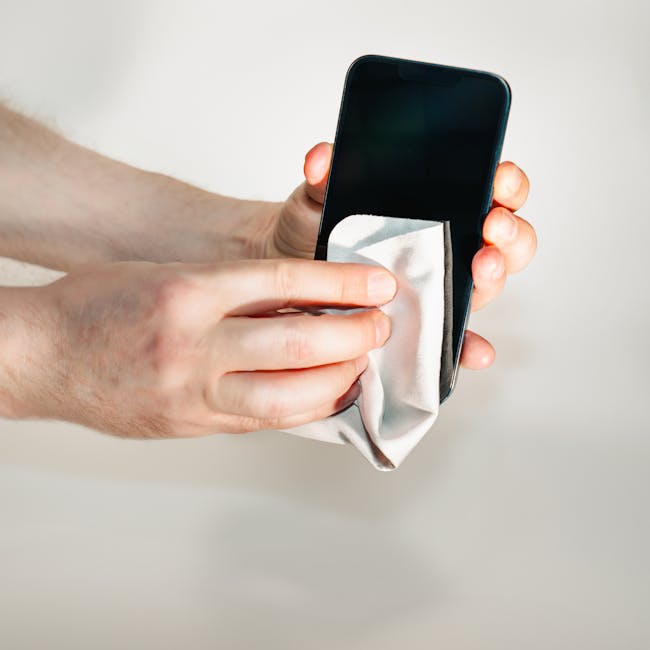
When we talk about the best way to clean dust off electronics, screens are usually the first thing people notice. Modern displays are engineering marvels, but they are also incredibly fragile. Many feature anti-reflective coatings or oleophobic (oil-repellent) layers that can be stripped away by harsh chemicals.
Safe Solutions: The Best Way to Clean Dust Off Electronics Screens
Whether it is your 65-inch 4K TV or your smartphone, the rules are similar:
- Power Down: Always turn the device off. A black screen makes it much easier to see dust and smudges.
- Dry Dust First: Use a clean, dry microfiber cloth. Wipe gently in circular motions starting from the center and moving outward. For many TVs, this is all you will ever need.
- Dampen, Don’t Soak: If a smudge won’t budge, lightly dampen the corner of the cloth with distilled water or a 50/50 mix of water and isopropyl alcohol. Never spray the screen directly. Liquid can seep into the bezel and short out the display panel.
- Avoid “The Big Three”: Never use Windex, ethyl alcohol, or soapy water on high-end screens. These can leave a permanent “cloudy” look on the display.
Keyboard Maintenance: The Best Way to Clean Dust Off Electronics Inputs
Your keyboard is likely the dirtiest object in your home. It traps skin cells, hair, food crumbs, and dust. For a thorough clean:
- The Shake Method: Unplug the keyboard, turn it upside down over a trash can, and give it a firm shake. Use multi-directional motions (up-down, side-to-side) to dislodge debris.
- Blowing it Out: Use compressed air in a zigzag pattern to blow out remaining dust. For laptop keyboards, be extra gentle to ensure you don’t blow debris further under the keys.
- Detailing: Dip a cotton swab in isopropyl alcohol and run it along the sides of the keys. This removes the “sticky” grime that builds up from finger oils.
- Mouse Care: Don’t forget the mouse! Use alcohol on a cloth to wipe the body and a dry swab to gently clear dust from the optical sensor hole on the bottom.
Maintaining a clean workspace isn’t just about the gadgets; it’s about your health. For more on this, see our Dusting Tips for Better Air Quality.
Deep Cleaning Internal Components and Vents
Cleaning the outside is for aesthetics; cleaning the inside is for survival. When dust blankets your CPU heatsink or clogs your laptop’s exhaust vents, your computer has to work harder to stay cool. This leads to “thermal throttling,” where your PC slows itself down to prevent melting.
The How to Clean Your Computer: Complete Guide for PC Maintenance (2024) suggests a deep internal clean every 3 to 6 months. Here is how we do it safely:
- Preparation: Shut down the PC and unplug it from the wall. If you’re working on a laptop, remove the battery if possible. Move the machine to a well-ventilated area—ideally outside—because a lot of dust is about to fly.
- Grounding: Touch a metal part of the PC case or wear an anti-static wrist strap. Static electricity can kill a PC faster than dust can.
- The Fan Rule: When using compressed air on fans, hold the fan blade still with your finger. If you let the air spin the fan at high speeds, it can act like a generator and send electricity back into the motherboard, or simply ruin the fan’s bearings.
- Vents and Heatsinks: Blast the air through the cooling fins of the heatsink and out through the exhaust vents. For more detailed steps, see our guide on Removing Dust From Electronics.
- What to Avoid: Never use a standard household vacuum inside your PC. Vacuums create massive amounts of static electricity at the plastic nozzle. If you must use a vacuum, use it only on the outside of the vents to catch the dust you’ve blown out with compressed air.
For Dell users, the Computer Maintenance and Basic Personal Computer Care Guide emphasizes that keeping these vents clear is the single best way to prevent hardware failure.
Specialized Care for Wearables and Audio Gear
Wearables like smartwatches and VR headsets require a delicate touch because they sit against your skin and eyes.
- Earbuds: Use a dry cotton swab to clean the speaker mesh. For stubborn earwax, a small piece of adhesive putty (like Blu-Tack) can be pressed gently into the mesh and pulled away to lift out debris.
- Smartwatches: The watch face can be cleaned like a phone screen. For the bands, silicone and metal can usually handle a wipe with 70% isopropyl alcohol. For leather bands, stick to a dry cloth.
- VR Headsets: These are the exception to the alcohol rule! Never use alcohol on VR lenses. It can permanently blur the plastic. Use only a dry, high-quality microfiber cloth. For the facial interface (the foam part), use fragrance-free dish soap and warm water, then let it air dry completely.
- Smart Speakers: Most speakers have fabric grilles that act as dust magnets. Use a lint roller or a vacuum with a soft brush attachment to gently pull dust out of the fabric.
Just as you maintain your tech, you should consider the air around it. We’ve explored The Science of Maintaining Your Mini Air Purifier to show how keeping your environment clean reduces the amount of work you have to do on your electronics.
Conclusion
At Computadora Agora, we believe that a little bit of regular maintenance goes a long way. The best way to clean dust off electronics isn’t about expensive gadgets; it’s about using the right technique consistently. By spending 10 minutes a month dusting your workstation and 20 minutes every few months cleaning your PC’s internals, you can save yourself hundreds of dollars in repair costs and keep your devices running like new.
To prevent future buildup, consider keeping your PC off the carpet, using dust filters on your intake fans, and maintaining good air filtration in your home. If a device is severely “caked” in grime or if you’re uncomfortable opening up a high-end laptop, don’t hesitate to seek professional help.
For more advice on keeping your home and tech in top shape, explore our More cleaning tips section.
Frequently Asked Questions about Electronics Cleaning
How often should I clean my electronics? We recommend a light dusting of screens and keyboards once a week. A “deep clean” of computer internals and ports should happen every 3 to 6 months, depending on if you have pets or live in a dusty area.
Can I use vinegar to clean my computer? No. While vinegar is great for windows and countertops, its acidity can damage the sensitive coatings on screens and can be corrosive to metal components over time. Stick to 70% isopropyl alcohol or distilled water.
Is it safe to use a vacuum on my keyboard? A small, battery-powered vacuum designed for electronics is safe. However, avoid using a full-sized household vacuum on internal components or sensitive ports, as the static electricity generated can damage the circuitry.
Can I use “canned air” on everything? Mostly, yes, but be careful with the pressure. Hold the can at least 6 inches away from delicate parts like camera lenses or laptop keys to avoid dislodging them or causing damage with high-pressure air.
What should I do if I spill liquid on my keyboard? Immediately unplug it! Turn it upside down to let the liquid drain out. Do not try to “dry it out” by plugging it back in. Wait at least 48 hours for it to dry completely before testing it. For mechanical keyboards, you may need to remove the keycaps to clean the switches with isopropyl alcohol to prevent stickiness.
